How to Print Coloring Pages Without Wasting Ink
Printable coloring pages are handy, but if you print them often, your ink cartridge might run out sooner than you think.
The black outlines on coloring pages are not always what uses the most ink. Things like website backgrounds, extra images, dark borders, wrong print settings, and printing too many test pages can use up much more ink than the page itself.
With a few simple changes, you can save ink at home without ending up with faint or hard-to-see outlines.
Start With an Ink-Friendly Coloring Page
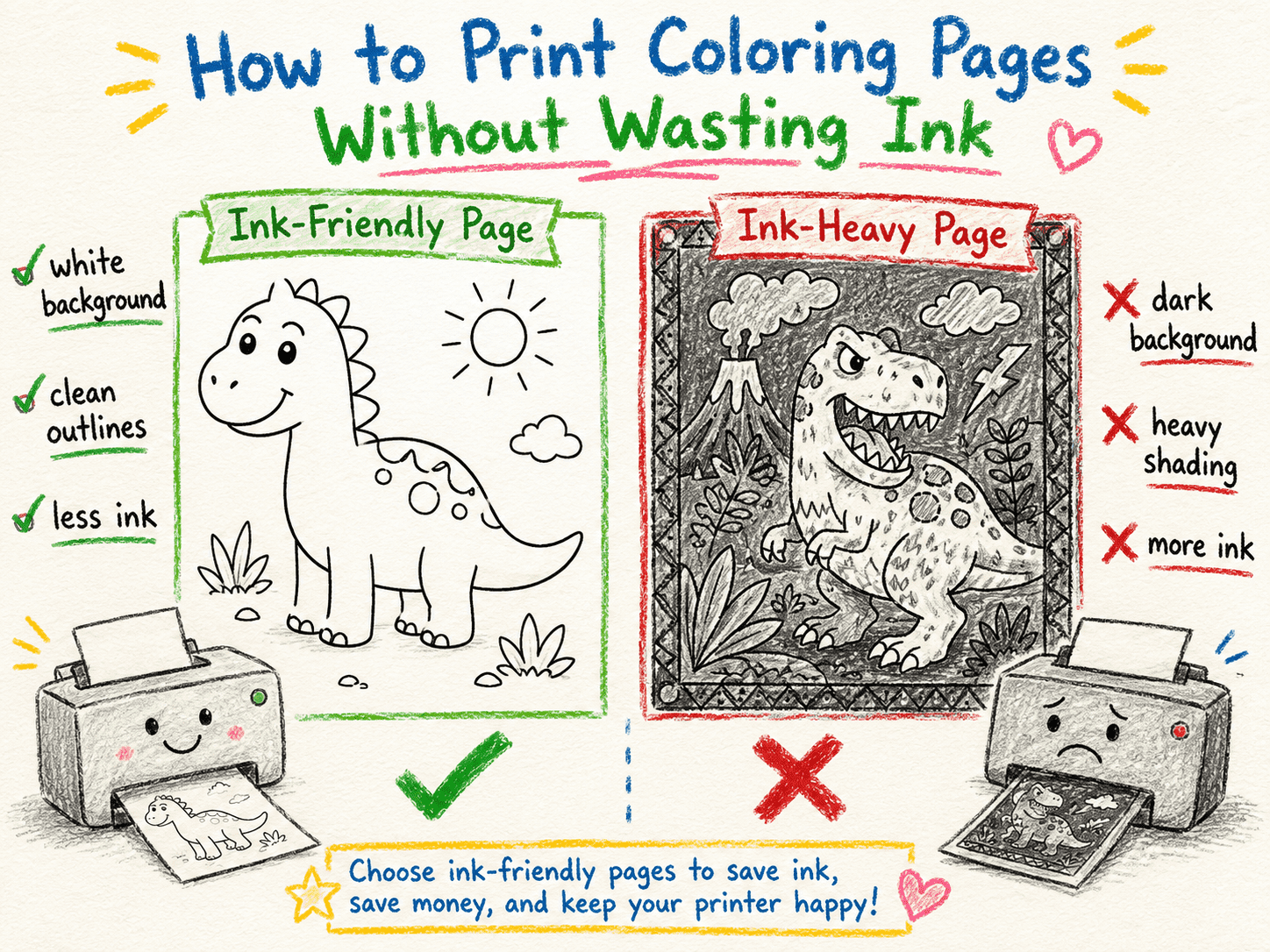
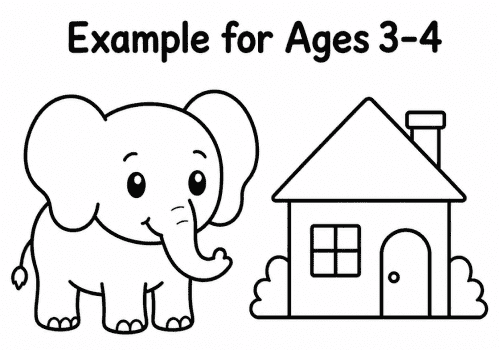
The most economical coloring pages have a white background, clean black outlines, and plenty of open space.
Avoid designs containing:
- Large black areas
- Gray shadows
- Colored backgrounds
- Heavy decorative frames
- Solid patterns
- Website headers or advertisements
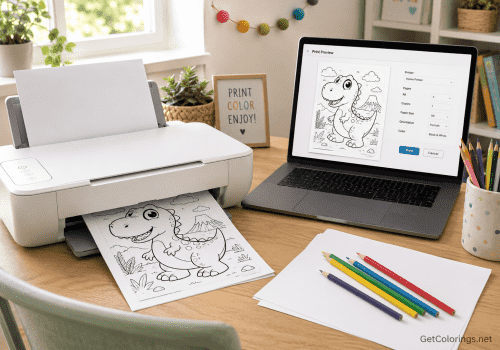
For example, a basic dinosaur line drawing uses much less ink than a page filled with a black sky, shaded mountains, and a thick border.
Before you download, open the full-size image and make sure the background is really white. Sometimes, a page looks white on your screen but actually has a light gray or cream background that your printer will try to print.
Whenever you can, use the Download or Print button instead of printing the whole webpage. This way, you avoid printing menus, buttons, logos, and other things you don’t need.
For help selecting a clear and age-appropriate design, see How to Choose the Right Coloring Pages for Your Child’s Age.
Choose Grayscale or Black-and-White Printing
Most coloring pages do not need colored ink.
In the printer settings, look for an option such as:
- Black and White
- Grayscale
- Monochrome
- Black Ink Only
These settings might seem the same, but printers can treat them differently.
Grayscale often uses both black and color cartridges to make different shades. Black Ink Only, if your printer has it, mostly uses just the black cartridge.
If you want to save your color ink, see if your printer has a real black-only option in its settings.
Print a test page and look at the outlines. If they’re clear, use the same setting next time you print coloring pages.
Use Standard Quality Instead of Best Quality
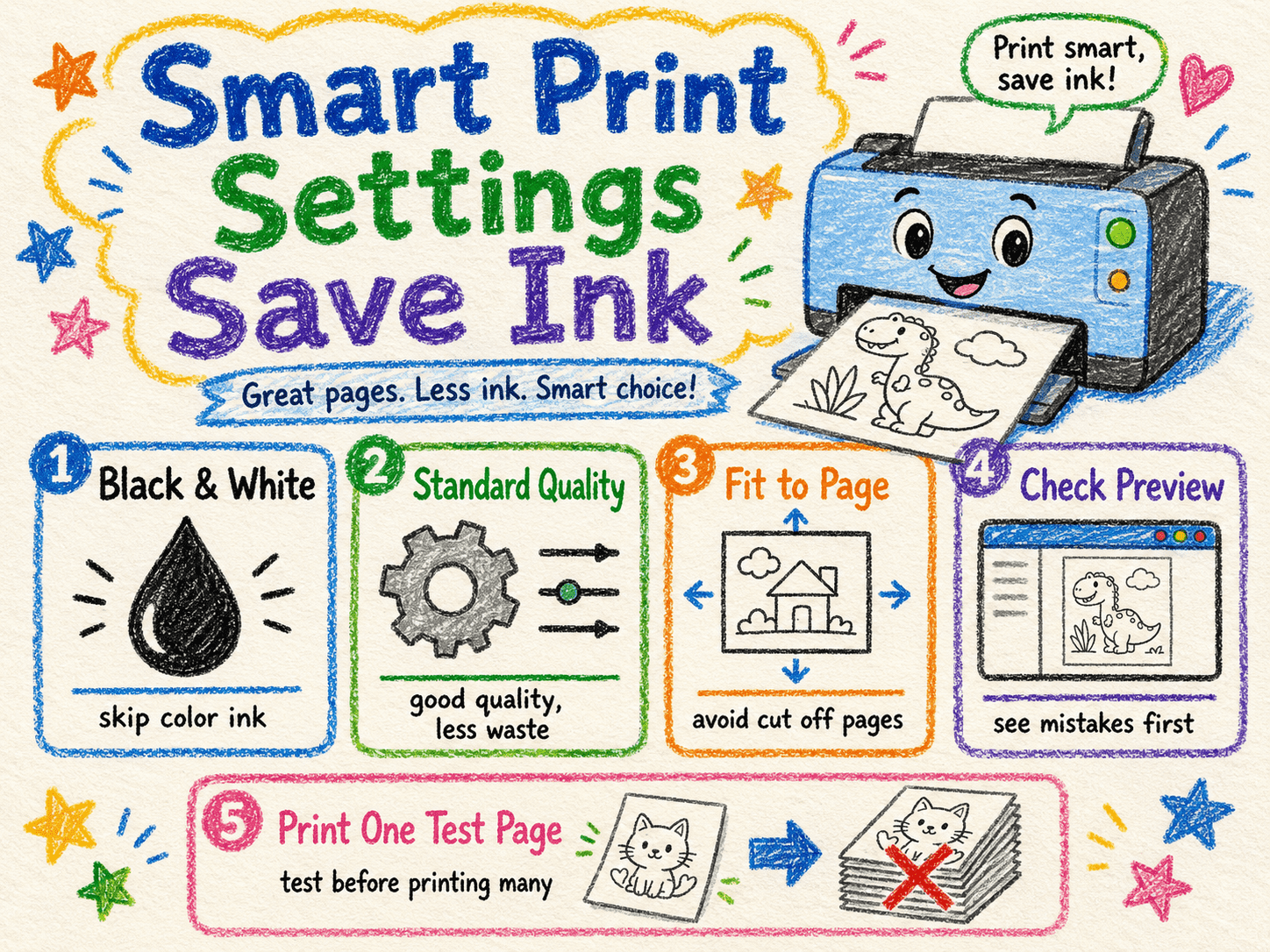
High-quality printing is great for photos, but you usually don’t need it for coloring pages.
Printer quality settings often include:
Draft, Standard, Normal, High, or Best.
Draft mode uses the least ink, but the outlines might look broken or faded. Best quality gives you strong, smooth lines, but it can use more ink than you really need.
For most printable coloring pages, Standard or Normal quality gives the best balance.
Use Draft mode for temporary practice sheets, simple number activities, and pages children are likely to complete quickly. Use Standard quality for detailed pictures or pages intended for gifts and displays.
Printing a test page saves more ink and paper than finding out later that twenty classroom copies are too light to use.
Check the Print Preview Carefully
Using the print preview can help you save both ink and paper.
Before printing, make sure the preview shows only the coloring page. Look for unexpected items such as:
- A website menu
- A footer
- A large title outside the picture
- A second blank page
- Advertisements
- Browser information
- An unnecessary background
Also, make sure you’re only printing one copy and that the page isn’t split across several sheets.
If the picture looks too small or cut off, don’t keep printing and guessing. Try using Fit to Page and check the preview again.
The troubleshooting guide Why Are My Coloring Pages Printing Too Small or Cut Off? explains how to solve scaling, orientation, and paper size problems before wasting supplies.
Avoid Printing Large Areas That Children Will Cover Anyway
Sometimes a printable contains colored examples, grayed-out areas, or decorative elements that children are expected to color over.
If those elements are not necessary, remove them before printing.
A basic photo editor can help you:
- Crop unnecessary borders
- Erase dark backgrounds
- Increase brightness
- Turn the page into pure black and white
- Remove large filled sections
- Simplify decorative elements
You don’t have to redo the whole image. Just taking out one dark background can save a lot of ink.
When creating a personalized coloring page from a photograph, simplify it into clean outlines before printing. The process is explained in How to Turn a Family Photo into a Coloring Page.
Print One Test Page Before a Full Set
This step matters most for teachers, birthday parties, and homemade coloring books.
Print one copy and check:
- Are the lines dark enough?
- Is the full image visible?
- Is the paper orientation correct?
- Is the image large enough?
- Did the printer add any unwanted content?
- Is there a second blank page?
Only after the test looks correct should you print the remaining copies.
Printing one test sheet might seem like extra work, but it’s much cheaper than throwing away a whole stack of pages with the wrong settings.
Teachers can find more practical classroom uses in How Teachers Can Use Printable Coloring Pages in the Classroom.
Print Several Pages in One Session
Inkjet printers sometimes run cleaning cycles when you turn them on or if they haven’t been used in a while. These cycles use up ink even though nothing gets printed.
When practical, collect several coloring pages and print them during one session instead of turning the printer on repeatedly throughout the day.
This is useful when preparing:
- A weekly activity folder
- A classroom set
- Travel pages
- A birthday pack
- A personalized coloring book
First, organize your files and check your settings, then print the whole group at once.
For a homemade book, Turn Your Ideas into a Personalized Coloring Book explains how to arrange pages before printing and binding them.
Do Not Clean the Printhead Unnecessarily
Printer software may suggest running a printhead-cleaning cycle when lines look faint or incomplete.
Cleaning can fix clogged nozzles, but it uses a lot of ink. Don’t run several cleaning cycles in a row without checking for other problems first.
Before cleaning, confirm that:
- The cartridge is not nearly empty
- Draft quality is not selected
- The image itself does not have pale gray lines
- The correct black-and-white setting is active
- The cartridge is installed properly
If cleaning is necessary, run one cycle and print a nozzle-check page before repeating it.
Using your printer regularly helps keep the ink from drying out in the nozzles. Printing a simple page now and then can save more ink than letting the printer sit unused for months.
Match Paper to the Activity
Paper does not directly reduce the amount of ink released, but it changes how the result looks.
Very absorbent paper can make lines look softer, which might make you want to use higher print quality when you don’t need to. Regular smooth printer paper usually gives you clear outlines with normal settings.
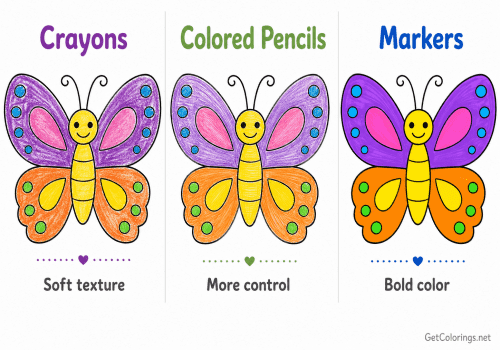
For everyday crayons and colored pencils, regular 75-80 gsm paper is usually sufficient. Slightly thicker paper can be useful for markers, crafts, or pages that will be displayed.
See The Best Paper for Printing Coloring Pages at Home for a fuller comparison of paper weights and coloring materials.
Save Successful Settings
When you find settings that work well, write them down or save them as a printer preset.
A practical everyday setup might be:
- Paper: A4 or US Letter
- Color: Black and White
- Quality: Standard
- Scale: Fit to Page
- Margins: Default or Minimum
- Pages per Sheet: One
Printers might use different names for these settings, but the idea is the same.
A saved preset reduces mistakes and makes it easier for every family member to print coloring pages consistently.
The Low-Ink Printing Routine
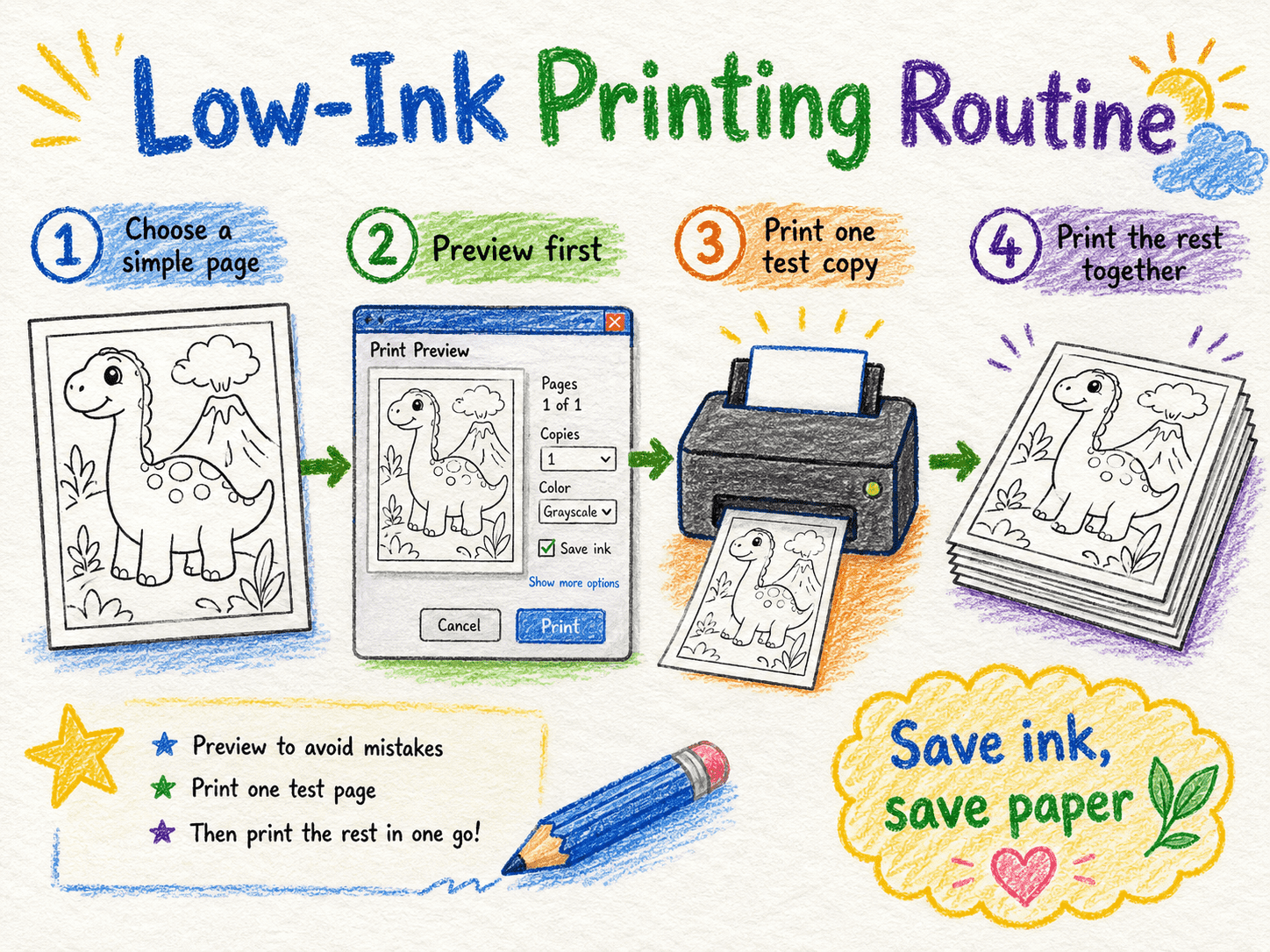
The most economical printing method is not complicated.
Pick a simple line drawing with a white background. Download the image instead of printing the whole webpage. Choose black-and-white and Standard quality in your settings. Check the preview, then print a test copy.
If the result is clear, continue with the remaining pages.
These habits help you save both black and color ink, while still giving kids clear outlines they’ll enjoy coloring.